
Friction by Design: Inconvenient Defaults That Save Your Focus
You sit down to finally write that report. One tap to “just check” your messages, a glance at email, a quick scroll. Suddenly it’s 11:12am and your coffee is cold. Sound familiar?
It’s not that you lack discipline. It’s that your environment is quietly steering you. Devices, apps and settings are optimised for “easy now”, not “important later”. The good news? You can flip that script with a simple idea: add small, deliberate bits of friction where distraction creeps in, and remove friction where deep work should flow.
What “friction by design” really means
Friction by design is the art of changing your defaults so the path of least resistance leads to focus. It’s not about heroic willpower; it’s about shaping your setup so you don’t need it as often. A tiny speed bump on the way to distraction, and a clear lane for the work that matters.
Actionable ways to build helpful friction (and remove the bad kind)
1) Phone: make distractions the long way round
- Move all socials, news and shopping apps off the first home screen. Put them in a folder on the last page. One extra swipe is often enough to skip the habit loop.
- Schedule Do Not Disturb during your focus blocks, with exceptions for family and urgent calls.
- Turn your phone to greyscale during work hours (iOS/Android). Less colour, less compulsion.
- Disable badges for non-essential apps. No red dots, no mental pull.
- Charge your phone in another room. A $10 charger buys back hours of attention.
2) Computer: make the work window the easy window
- Use separate browser profiles: “Work” (no socials, minimal extensions) and “Personal”. Keep Work as the default.
- Set a blank new-tab page. No news, no feed, just a clean slate.
- Create a Focus mode: blocklist sites during 9–12 and 1–4, then batch personal browsing after.
- Full-screen your active doc and hide the Dock/taskbar. Out of sight, out of mind.
3) Calendar and meetings: set inconvenient defaults for time-wasters
- Default meetings to 25 or 50 minutes. That built-in buffer protects your next block.
- Auto-decline meetings that conflict with your deep work windows. Let people suggest alternatives.
- Time-block your top two outcomes before opening email. Guard that morning brainpower.
4) Inboxes: batch by default
- Turn off “fetch automatically” for email on your phone. Check at set times (e.g. 11:30am and 3:30pm).
- Use rules to file newsletters into a “Read Later” folder. Your main inbox stays for actionables only.
- Hide the unread count. You’ll act based on intention, not a number.
5) Environment: make starting easy and drifting hard
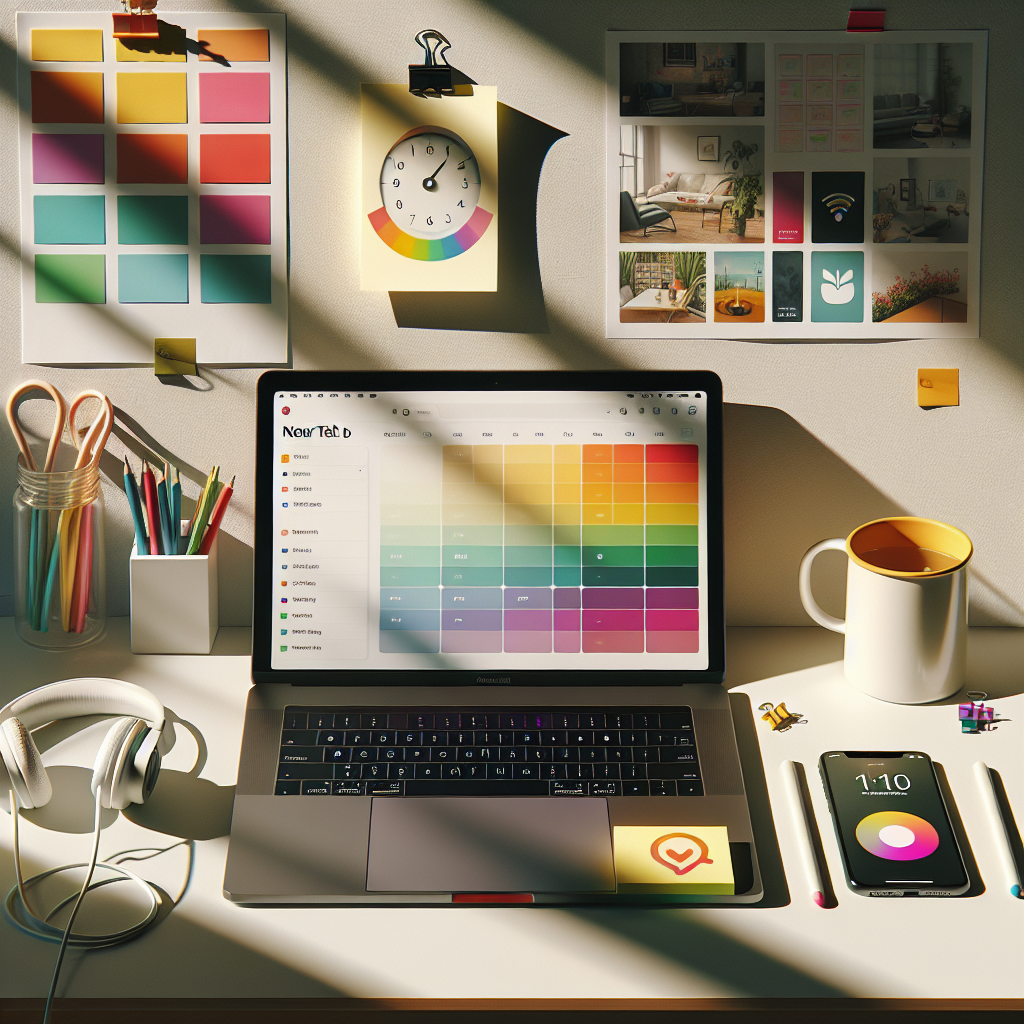
- End each day by laying out your next task, open on screen or on a sticky note: “Write intro paragraph”. Tiny runway, big momentum.
- Keep water, headphones and your task list within reach; keep snacks and your phone out of reach.
- Create a “focus corner” with one purpose. When you sit there, your brain knows it’s go-time.
6) Templates and checklists: remove thinking friction for good work
- Use a one-page brief template for new projects (purpose, success, first three steps). No setup delay, just start.
- Keep a “Definition of Done” checklist for recurring tasks to avoid rework and dithering.
7) Social by design: make it a choice, not a reflex
- Delete social apps on weekdays; use the web versions only. That login step is powerful friction.
- Set Screen Time/Digital Wellbeing limits with a passcode someone else controls. Future-you will thank present-you.
Real-world snapshots
- Priya, a developer, keeps Slack closed before 11am. Her calendar auto-replies with “Heads down this morning—ping me after 11 if it’s urgent.” Support requests dropped, and ship speed rose.
- Sam, a marketer, made YouTube available only on TV. If he wants to watch, he moves to the lounge. Mindless tabs vanished; deliberate breaks stayed.
- Lucas, a designer, leaves the exact Figma file and frame open overnight with a note: “Tweak spacing, export v2.” He starts in 30 seconds, not 30 minutes.
Plan with less friction, execute with more (the good kind)
Helpful friction shines when your plan is simple and visible. Many people overcomplicate planning, then rely on willpower to execute. Flip it: keep planning lightweight, then add speed bumps to distractions.
One practical way to do this is to set clear weekly outcomes and track the small daily actions that move them. Tools like Meloplan make this dead simple: outline your week’s top outcomes, add the 10–15 minute actions that drive them, and check in daily. Because the plan is so easy to see and update, you can invest your discipline where it counts—showing up for the work and protecting your focus blocks.
How to tune your friction (so it helps, not hurts)
- Start tiny. Add one speed bump this week (e.g. greyscale phone during work hours) and one speed boost (e.g. open tomorrow’s doc before you log off).
- Use the “two overrides” rule. If you override a block twice in a day, either the block is in the wrong spot or the friction’s too weak. Adjust.
- Review weekly. Ask: What stole focus? Where could I add a 5-second delay? Where can I shave 5 seconds off starting?
Try this 10‑minute reset today
- Write your top two outcomes for tomorrow on a sticky note.
- Open the files you’ll need and leave them front and centre.
- Move socials off your first home screen and enable Do Not Disturb for 9–12.
- Set a 50‑minute focus block in your calendar with a 10‑minute buffer.
Tomorrow, notice how much less willpower you need. That’s friction by design doing the heavy lifting.
If you want a straightforward way to plan your week and track the daily actions that drive real momentum, give Meloplan a try. It’s quick to set up, friendly to use, and helps you keep your focus where it belongs—on the work that matters. Start here: app.meloplan.com/register

Leave a Reply